
SVG Support
QuestPDF supports SVG images, allowing you to integrate scalable vector graphics just as you would with raster images. You can either load and parse an SVG image on demand or preload it to improve performance when the same image is used multiple times.
Basic Usage
There are two ways to add an SVG image to your document:
csharp
// 1) with a text containing SVG content
var svgContent = File.ReadAllText("pdf-icon.svg");
container.Svg(svgContent);

// 2) with a file path
container.Svg("pdf-icon.svg")
How to fix FileNotFoundException
When loading files using relative paths, please ensure that your files are published along with your application, so it can load them during runtime. The recommended approach is to configure the file to be copied to the build output directory. It can be done by adding the following configuration to your .csproj file:
xml
<ItemGroup>
    <None Update="assets/pdf-icon.svg" CopyToOutputDirectory="PreserveNewest" />
</ItemGroup>
You can also target an entire folder:
xml
<ItemGroup>
    <None Update="assets/**" CopyToOutputDirectory="PreserveNewest" />
</ItemGroup>
The same setting is also available via the GUI in your preferred IDE.
TIP
SVG content supports the same scaling options as raster images. Learn more
For example:
csharp
container
  .Width(200)
  .Svg("pdf-icon.svg")
  .FitArea();
Example
csharp
container.Column(column =>
{
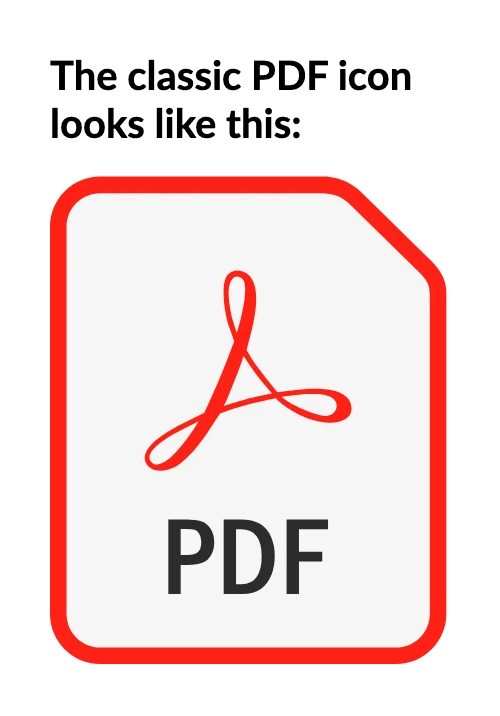
    column.Item().Text("The classic PDF icon looks like this:").Bold();
    column.Item().Height(15);
    column.Item().Svg(svgContent);
});
Preloading
For better performance, especially when reusing the same image, you can preload the SVG image. This ensures that the image is loaded and parsed only once:
csharp
// in global or static context
var image = SvgImage.FromFile("pdf-icon.svg");

Document
    .Create(document =>
    {
        document.Page(page =>
        {
            page.Size(PageSizes.A7.Landscape());
            page.Margin(25);

            page.Content()
                .Padding(25)
                .Svg(image))
                .FitArea();
        });
    })
    .GeneratePdfAndShow();
Font Support
Text inside an SVG image uses the same fonts as the rest of the document: the bundled Lato font, files deployed along with the application (see automatic local font registration), and fonts registered via the FontManager class. Fonts installed in the operating system are available only when the QuestPDF.Settings.UseSystemFonts setting is enabled.
WARNING
The QuestPDF.Settings.ThrowOnMissingFontFamilies and QuestPDF.Settings.ThrowOnMissingTextGlyphs settings do not apply to SVG content. A missing font family or glyph inside an SVG image does not raise an exception.
Learn more in the font management section.
Limitations
The SVG module displays SVGs as images with high capabilities and compliance. Most SVG files are expected to render correctly, particularly those from popular design tools. However, there are some limitations to be aware of. If an SVG file does not render as expected after considering the following points, please file an issue.
Learn more on the Shopify page.