---
url: https://www.questpdf.com/api-reference/image/basics.md
---
# Image
Use this element to embed images into your document. By default, it preserves the image's original aspect ratio, ensuring that your visuals remain undistorted.
Supported image format: JPEG, PNG, BMP, WEBP.
## Usage
There are several ways to add an image to your document:
```csharp
// 1) a binary array
byte[] imageData = File.ReadAllBytes("path/to/logo.png")
container.Image(imageData)
// 2) a fileName
container.Image("path/myFile.png")
// 3) a stream
using var stream = new FileStream("logo.png", FileMode.Open);
container.Image(stream);
```
::: details How to fix **FileNotFoundException**
When loading files using relative paths, please ensure that your files are published along with your application, so it can load them during runtime. The recommended approach is to configure the file to be copied to the build output directory. It can be done by adding the following configuration to your `.csproj` file:
```xml
```
You can also target an entire folder:
```xml
```
The same setting is also available via the GUI in your preferred IDE.
:::
::: tip
Please note that there is a significant difference between image resolution (number of pixels vertically and horizontally) and its physical size described in points.
Therefore, the resolution of an image is not used for determining its physical size on the document.
:::
#### Example
```csharp{8-11}
.Column(column =>
{
column.Spacing(10);
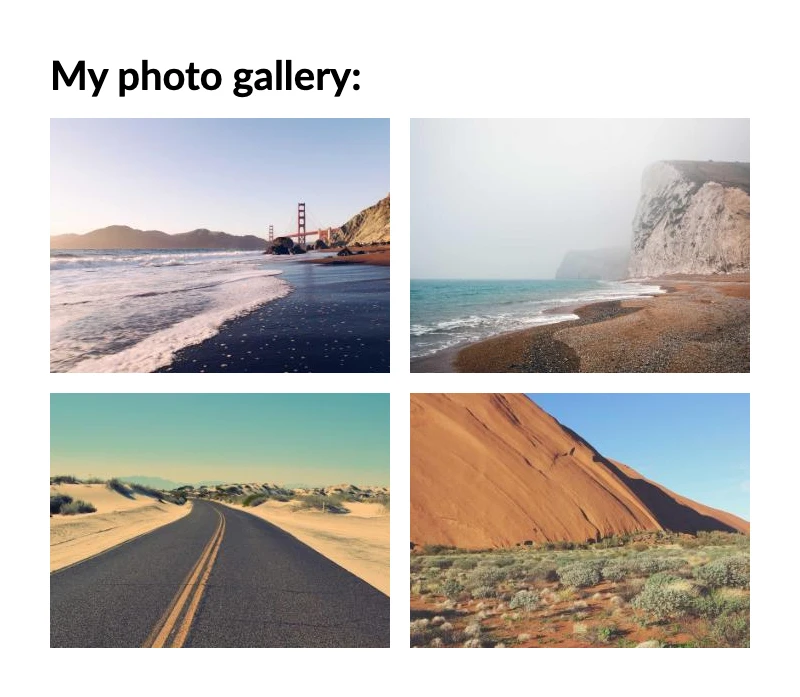
column.Item().Text("My photo gallery:").Bold();
column.Item().Row(row =>
{
row.Spacing(10);
row.RelativeItem().Image("photo-gallery-1.jpg");
row.RelativeItem().Image("photo-gallery-2.jpg");
});
column.Item().Row(row =>
{
row.Spacing(10);
row.RelativeItem().Image("photo-gallery-3.jpg");
row.RelativeItem().Image("photo-gallery-4.jpg");
});
});
```
## Image scaling
When working with the Image element, controlling how it adjusts to available space is crucial for achieving the desired layout.
By default, the image scales to fill the full width of its container while maintaining its aspect ratio.
#### Fitting options
| Method | Description |
|-------------------------|------------------------------------------------------------------------------------------------------------------------------------------------------------------------------------------------|
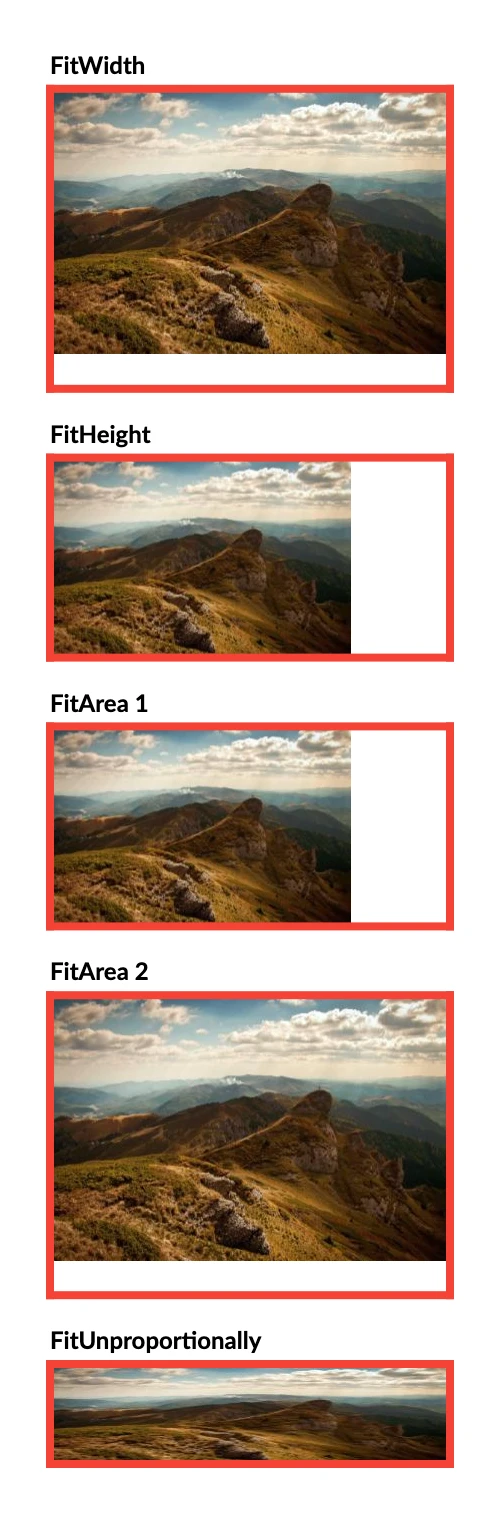
| **FitWidth** | Scales the image to fill the full width of its container. This is the default behavior. |
| **FitHeight** | Stretches the image vertically to fit the full available height. Often used with height-constraining elements like `Height`, `MaxHeight`, etc. |
| **FitArea** | Combines `FitWidth` and `FitHeight`. Resizes the image to utilize all available space, preserving its aspect ratio. Fills width or height based on container size. An optimal and safe choice. |
| **FitUnproportionally** | Adjusts the image to fill all available space, disregarding original proportions. This can lead to distorted scaling and is generally not recommended for most cases. |
::: danger
Please be careful. This component may try to enforce size constraints that are impossible to meet.
For example, the container may require more space than is available, or may try to squeeze its child into less space than possible.
Such scenarios result in a layout exception.
:::
#### Example
```csharp{10,21,32,43,54}
.Column(column =>
{
column.Item().PaddingBottom(5).Text("FitWidth").Bold();
column.Item()
.Width(200)
.Height(150)
.Border(4)
.BorderColor(Colors.Red.Medium)
.Image("photo.jpg")
.FitWidth();
column.Item().Height(15);
column.Item().PaddingBottom(5).Text("FitHeight").Bold();
column.Item()
.Width(200)
.Height(100)
.Border(4)
.BorderColor(Colors.Red.Medium)
.Image("photo.jpg")
.FitHeight();
column.Item().Height(15);
column.Item().PaddingBottom(5).Text("FitArea 1").Bold();
column.Item()
.Width(200)
.Height(100)
.Border(4)
.BorderColor(Colors.Red.Medium)
.Image("photo.jpg")
.FitArea();
column.Item().Height(15);
column.Item().PaddingBottom(5).Text("FitArea 2").Bold();
column.Item()
.Width(200)
.Height(150)
.Border(4)
.BorderColor(Colors.Red.Medium)
.Image("photo.jpg")
.FitArea();
column.Item().Height(15);
column.Item().PaddingBottom(5).Text("FitUnproportionally").Bold();
column.Item()
.Width(200)
.Height(50)
.Border(4)
.BorderColor(Colors.Red.Medium)
.Image("photo.jpg")
.FitUnproportionally();
});
```
## Limiting image size
The PDF standard uses points to describe size, where there are 72 points in 1 inch. `Image` uses pixels to describe content. However, pixel does not have any meaningful size. Only when you specify DPI (dots per inch), is it possible to determine a pixel's size. The QuestPDF library always scales an image, because determining physical image size based on its resolution does not make sense.
To force an image to take a specified area, you can use any of the constraining elements. The simplest ones are `Width` and `Height`, e.g.:
```csharp
container
.Width(1, Unit.Inch)
.Image(ImageElement.Image)
```
Please note that because the `Image` element uses a proper scaling setting by default, you do not need to use both `Width` and `Height` (the image aspect ratio is preserved).